

Interior pages are all of the pages on your site other than the homepage.
Banner Image
Interior pages can include a banner image just below the page title. This image is typically either the Banner or Sub-Banner option. The difference between the options is in how the image interacts with the sidebars on the page.
- Turn on the image in the Page Image Location Options with the Page Parameters.
- Use the Image Editor to create the appropriate size image based on the selection you made and which sidebars are being used.
- Insert the image and set additional Banner Image options in MultiEdit Content.


Left Sidebar
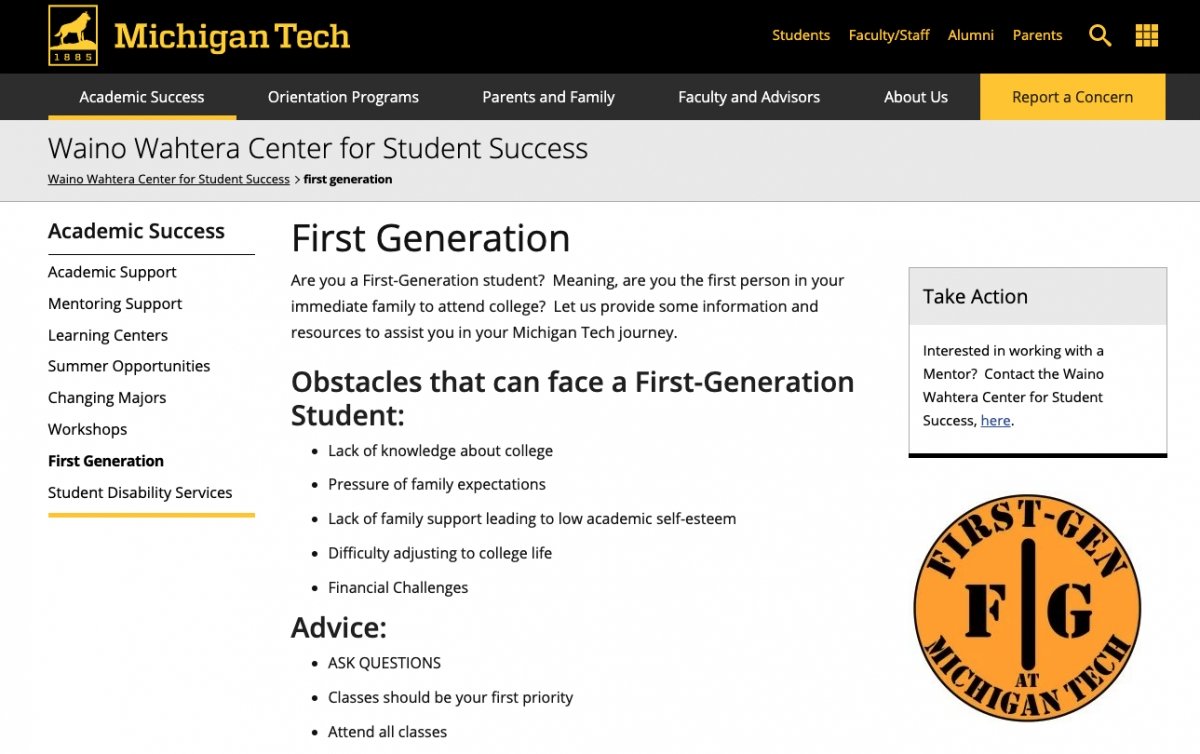
In general, if the page you are working on has additional pages in the section you should leave the left sidebar turned on. If the left sidebar only displays a heading and a couple lines, be sure to turn it off using the checkbox in Page Parameters.
Right Sidebar
The right sidebar is a good place to include supplemental information for your main content, such as contact information, links to additional information, or a call to action. You can use a Boxed Sidebar for neatly styling text content or a No Box Sidebar for things like buttons or images.
No Left or Right Sidebar
If your webpage does not have a left navigation or a right sidebar that seems appropriate, you can break up content using Boxed Sections. You can also place pointed text, for example, 2-3 sentences with a heading in a right sidebar. Do you have any call-to-actions? Place call-to-actions in the right sidebar.
People often struggle to read text that stretches across the full width of a screen because it increases the effort required for the eyes and brain to track lines of text efficiently. So, without having left navigation or a right sidebar, reading the text on your page maybe difficult for users. In web and UX design, this is usually referred to as poor readability caused by excessive line length.
Here’s Why it Happens
Your Eyes Have Trouble Tracking Long Lines
When a line of text is very wide, your eyes must travel a much greater horizontal distance. At the end of each line, readers then have to relocate the start of the next line accurately.
That creates two common problems:
- losing your place,
- or rereading the same line accidentally.
It Increases Cognitive Load
Reading is already a pattern-recognition task.
Extremely long lines force the brain to work harder to:
- maintain focus,
- track position,
- and process information continuously.
Shorter line lengths feel more manageable and reduce mental fatigue.
Scanning Becomes Harder
Web users rarely read every word. Most people scan first.
Very wide paragraphs make it difficult to:
- identify headings,
- spot keywords,
- and understand content structure quickly.
If you have trouble organizing your text, please email us with questions at webmaster@mtu.edu.