Lists
When you need to create a list in a document or on a webpage, use the built-in tools for ordered and unordered lists. Use an ordered list when the sequence matters (steps, ranking, or priority). Use an unordered list when the items are a collection with no required order. These tools add the underlying structure that assistive technologies rely on to announce and navigate lists correctly. Avoid creating visual-only “lists” (for example, using bold text, manual numbering, or extra line breaks) that look like a list but lack proper list structure.
List resources
- WebAIM Lists resource
- Make your Google Docs, Slides more accessible
- Content Structure (W3C-Web Accessibility Initiative resource)
Adding a list in Canvas
You can add accessible lists in Canvas wherever the rich content editor is available (content pages, discussions, annoucements, assignments, etc.). Follow the steps below to add a list:
- While in the Canvas rich content editor place your cursor where you want to insert the list.
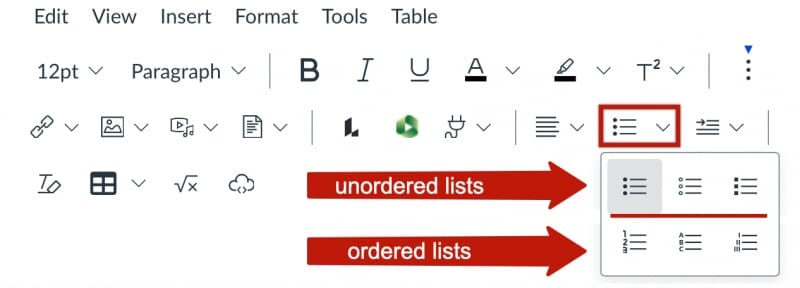
- Locate the list tool in the toolbar and select the type of list you need (unordered
or ordered). You may need to expand the Rich Content Editor tools in order to access the list tool.
- Begin typing to add your first list item.
- Type the Return key to add additional list items
- To complete the list type the Enter key, or click on the list tool in the toolbar.
Adding a list in Word
To create an accessible list in Word:
- In the Word document place your cursor at the location for the list.
- Select the approprite list tool from the Home ribbon.

You may need to expand your document window or click the paragraph tool to access the list tools.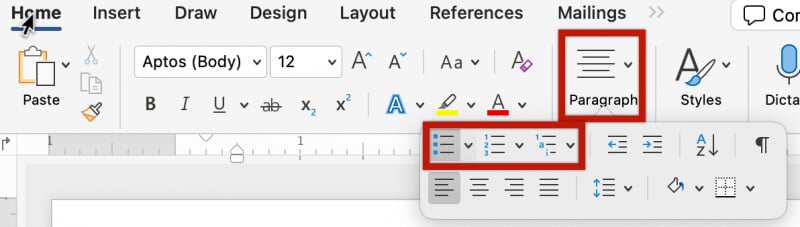
- Begin typing to add your first list item.
- Type the Return key to add additional list items
- To complete the list type the Enter key twice, or click on the list tool in the toolbar.
Adding a list in PowerPoint
To create an accessible list in PowerPoint:
- Determine where on the slide you would like the list to start.
- Select the approprite list tool from the Home ribbon.

- Enter the list information.
- Click on the list tool again to end the list.
Adding a list in Google Docs
To create an accessible list in Google Docs:
- In the Google Doc place your cursor at the location for the list.
- Select the approprite list tool from the toolbar at the top of the document.

You may need to expand your document window or click the more options icon to access the list tools.
- Begin typing to add your first list item.
- Type the Return key to add additional list items
- To complete the list type the Enter key twice, or click on the list tool in the toolbar.
Adding a list in Google Slides
To create an accessible list in Google Slides:
- Determine where on the slide you would like the list to start.
- Select the approprite list tool from the toolbar at the top of the document.
You may need to expand your document window or click the more options icon to access the list tools.
- Begin typing to add your first list item.
- Type the Return key to add additional list items.
- To complete the list type the Enter key twice, or click on the list tool in the toolbar.
Links
A hyperlink (link) lets readers jump to another location, such as a webpage, a file, an email address, or a specific section within a document. When adding links in a Canvas page or a document, use descriptive link text that clearly communicates the destination or purpose. For example, to learn more about MTU’s library, visit the Van Pelt and Opie Library’s homepage.
Descriptive links support accessibility because many screen reader users navigate by jumping from link to link and may not hear the information in the surrounding sentence, so the link text needs to make sense on its own.
Descriptive links also benefit sighted readers. People often skim content visually, and descriptive link text helps readers quickly find what they need. It can also reduce cognitive load and build confidence by setting accurate expectations about where a click will lead. When link text is vague (“click here”) or repetitive (“more info”), readers have to slow down and re-read surrounding text to determine each link's destination.
Avoid using full URLs as the visible link text when possible. Long strings are harder to scan visually and may be read character-by-character by assistive technologies. Instead, use natural language as the link text.
For example, if you want to include a link in your Canvas course or a document to MTU learning centers, you could provide the URL in the text like this: Please visit the MTU learning centers (https://www.mtu.edu/success/academic/support/learning-centers/) to learn about the services they offer. Including the whole link makes the paragraph more difficult to read and makes it difficult for users of assistive technologies to understand the link destination. Instead, use natural language as the link text like this: Please visit the MTU learning centers to learn about the services they offer. If you expect the content will be printed, it can be appropriate to include both a descriptive link in the sentence and the full URL in parentheses or a reference list so the resource remains usable in print.
Link resources
Adding a link in Canvas
You can add descriptive links in Canvas wherever the rich content editor is available
(content pages, discussions, annoucements, assignments, etc.). Follow the steps below
to add a link:
- In the rich content editor add or select the descriptive text that will include the link.
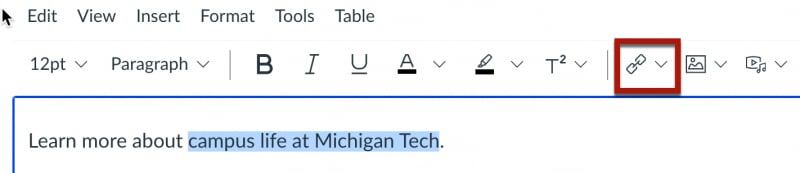
- Select the link tool from the toolbar and choose the type of link needed (external
link or course link). You may need to expand the browser window to access the link
tool.
To add an external link choose the external link option.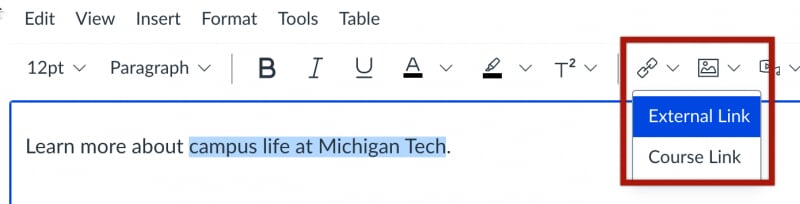
Add the full desitnation URL for the link in the Link field of the Insert Link dialog
and click Done.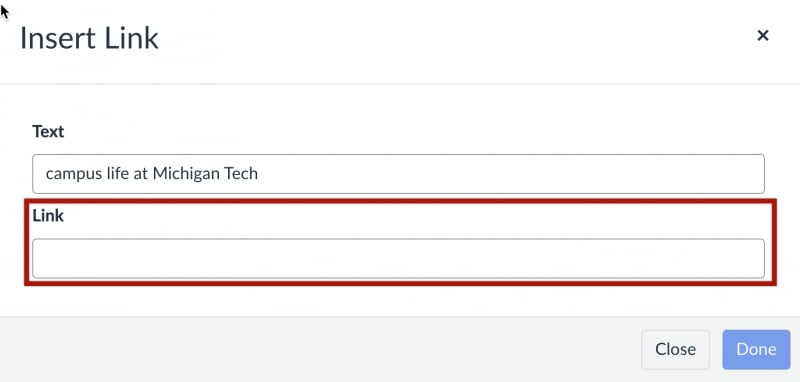
To add a link to Canvas content choose the course link option.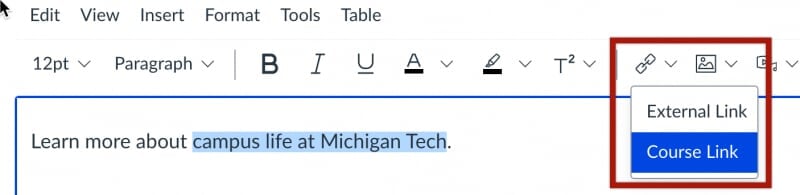
- From the Add dialog, select the course item to use for the destination link. Expand
the menu options for the type of course content (Pages, Assignments, Quizzes, etc.)
to locate the specific item.
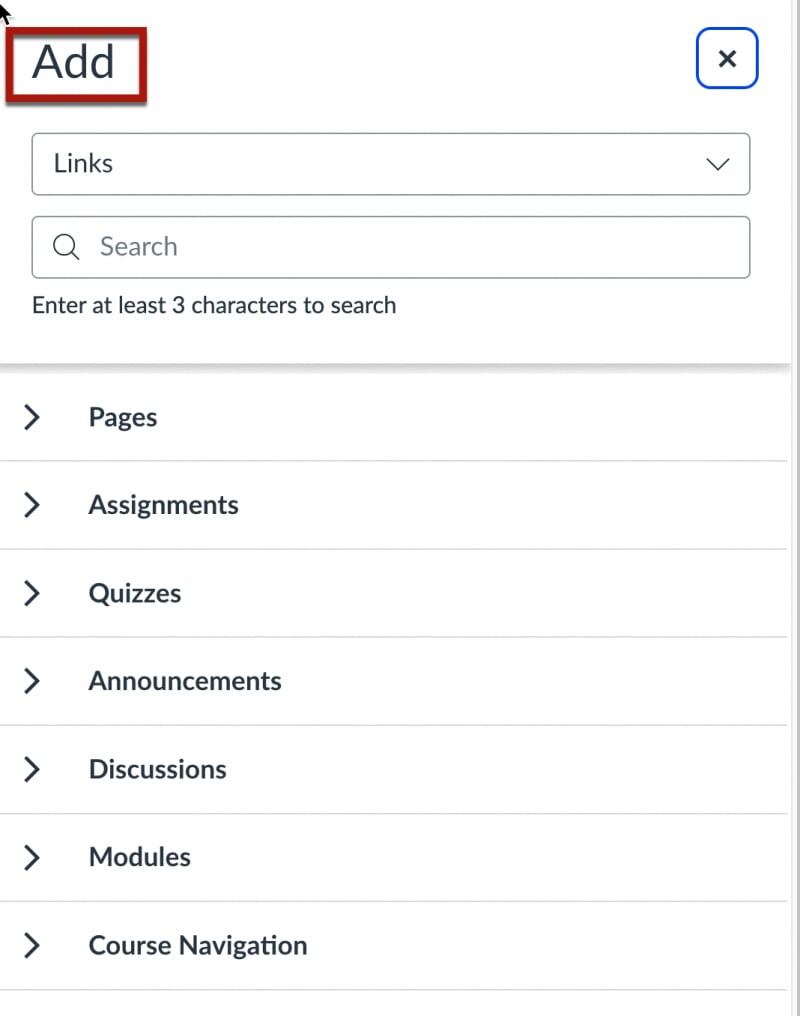
- When you select the specific course item the link will be added to the selected text in the rich content editor.
Adding a link in Word
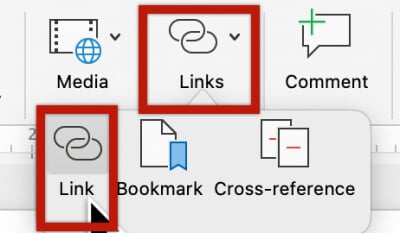
To add adescriptive link in Word determine where in the document you would like to add the link. Follow the steps below:
- Add or select the descriptive text that will include the link and select the text with your cursor.
- From the Insert tab on the Word ribbon select the Link tool.
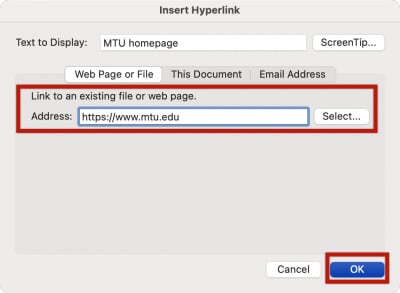
- Add the full destination URL for the link in the Insert Hyperlink dialog. You can also edit the link text if necessary.
- Click OK.
Adding a link in PowerPoint
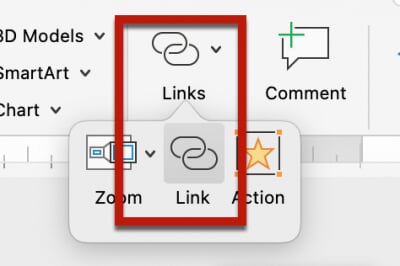
To add a descriptive link in PowerPoint determine where on the slide you would like to add the link. Follow the steps below:
- Add or select the descriptive text that will include the link and select the text with the cursor.
- From the Insert tab on the PowerPoint ribbon select the Link tool.
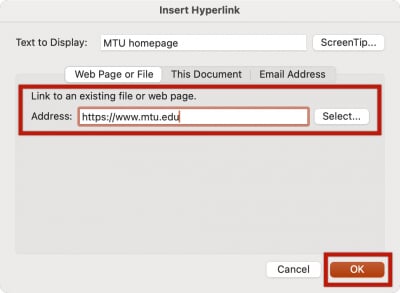
- Add the full destination URL for the link in the Insert Hyperlink dialog. You can also edit the link text if necessary.
- Click OK.
Adding a link in Google Docs
To add a descriptive link in Google Docs follow the steps below:
- Add the descriptive text that will include the link and select the text with the cursor.
- Select the Link tool from the Google Docs toolbar above the document. You may need
to expand the browser window to access the Link tool.

- Add the full destination URL in the link dialog. You can also edit the link text if
necessary.
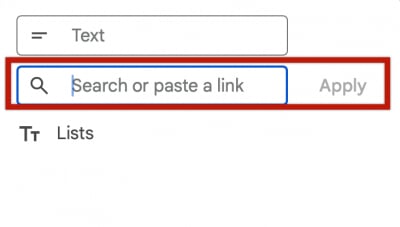
- Click Apply.
Adding a link in Google Slides
To add a descriptive link in Google Slides determine where on the slide you would
like to add the link. Follow the steps below:
- Add the descriptive text that will include the link and select the text with the cursor.
- Select the Link tool from the Google Slides toolbar above the document. You may need
to expand the browser window to access the Link tool.

- Add the full destination URL in the link dialog. You can also edit the link text if
necessary.
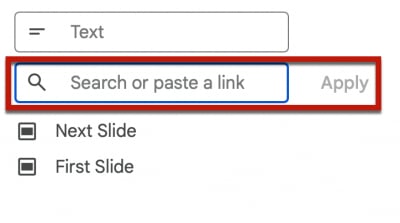
- Click Apply.