Image Descriptions (alt-text and long descriptions)
Introduction
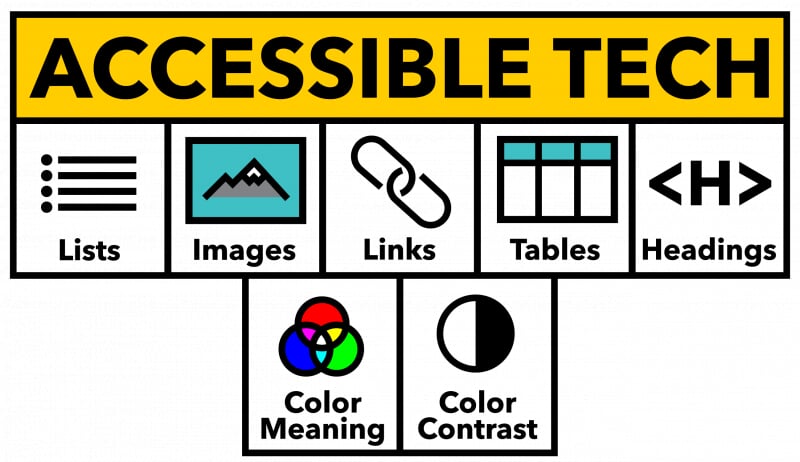
Image descriptions provide an important text alternative for visual content in a document or Canvas content page so that it is meaningful to everyone, including students who use screen readers, other assistive technologies, or experience problems loading images in their browser. Effective image descriptions communicate the purpose and key information of an image rather than its visual appearance alone. Short descriptions, often called alt-text (short for alternative text), are typically used for simple images and should be brief and to the point (approximately 140 characters or less), while longer descriptions are appropriate for complex visuals such as charts, diagrams, or infographics that require additional explanation. Images that are purely decorative and do not contain important instructional information do not require desriptions and should be noted as decorative within the editor you are using. Together, the short (alt-text) and long descriptions help ensure that essential information conveyed through images is accessible, understandable, and usable for all learners.
For instructors in STEM fields and other visually intensive disciplines, image descriptions can be especially challenging because these images often convey data, relationships, processes, or spatial information. Short alt-text works well for icons, photos, or simple visuals with a single purpose, but can quickly reach their limit for graphs, flowcharts, equations rendered as images, maps, or multi-part diagrams. In these cases, a longer description is often necessary to explain trends, comparisons, steps, or conclusions that sighted students can see at a glance. The goal is not to describe every visual detail, but to ensure that all students can access the same instructional meaning conveyed by the image, regardless of format or discipline. Providing a companion accessible data table of the information presented in a chart or graph can be an effective way to provide the information. Determining what to include in the description is usually best determined by the subject expert.
Options for including long descriptions:
- Added directly in the document or Canvas content page near the image
- Included on a separate appendix page that is linked from the page with the image. Make sure to also provide a link back to the original location to support easier navigation.
- A link to an appendix page from an image caption
- A link to an appendix page from the image directly
- For presentations (PowerPoint, Google Slides) you can add long descriptions in the speaker notes section. Screen reader users can navigate to this portion of the presentation. Direct the user to the speaker notes by referencing them in the Alt Text description for the image: "See speaker notes for full description".
Resources
- Word and PowerPoint Accessibility Evaluation Guide (WebAIM resource)
Adding Alt Text to images in Canvas
- In the rich content editor (RCE) select the image and click the Image Options button that appears
- Type your description in the Alt Text box
- NOTE: For images that are purely decorative select the Decorative Image checkbox
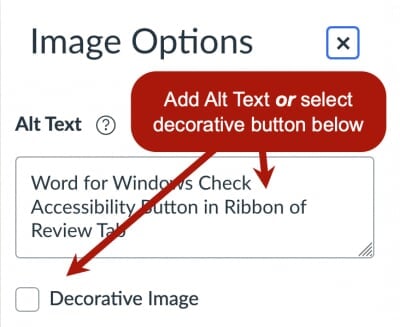
- NOTE: For images that are purely decorative select the Decorative Image checkbox
- Click Done to save your changes
Adding Alt Text to images in Word
- Right-click on the image
- Select View Alt Text from the context menu
- Type your description in the Alt Text box
- NOTE: For images that are purely decorative select the Mark as decorative option
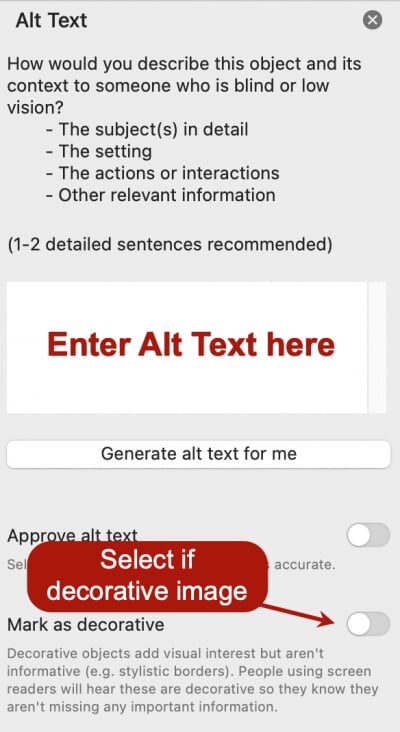
- NOTE: For images that are purely decorative select the Mark as decorative option
Adding Alt Text to images in PowerPoint
- Right-click on the image, chart or graphic
- Select View Alt Text from the context menu
- Type your description in the Alt Text box
- NOTE: For images that are purely decorative select the Mark as decorative option (see image above)
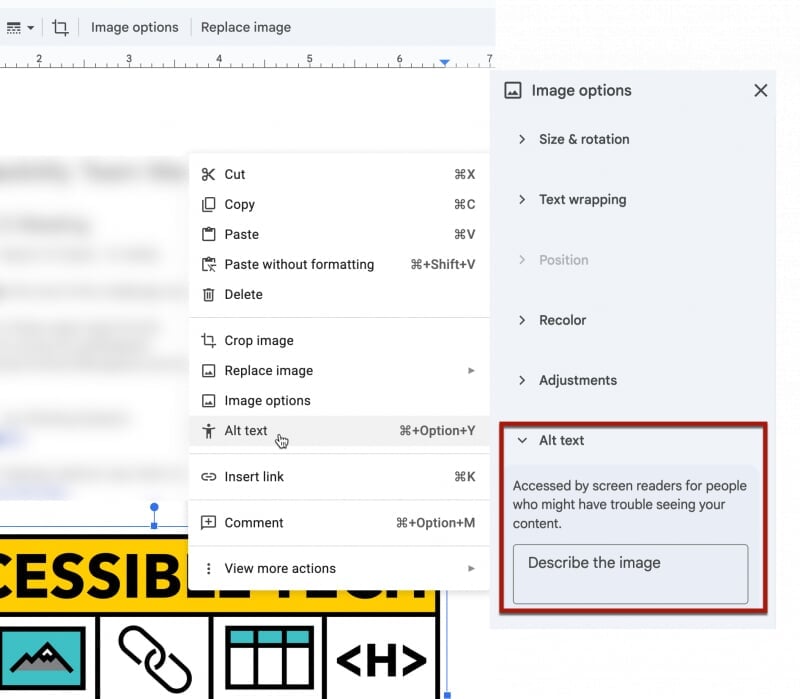
Adding Alt Text to images in Google Docs
- Right-click on the image
- Select Alt Text from the context menu to open the Image options sidebar
- Type your description in the Alt Text box available in the Image options sidebar
Adding Alt Text to images in Google Slides
- Right-click on the image
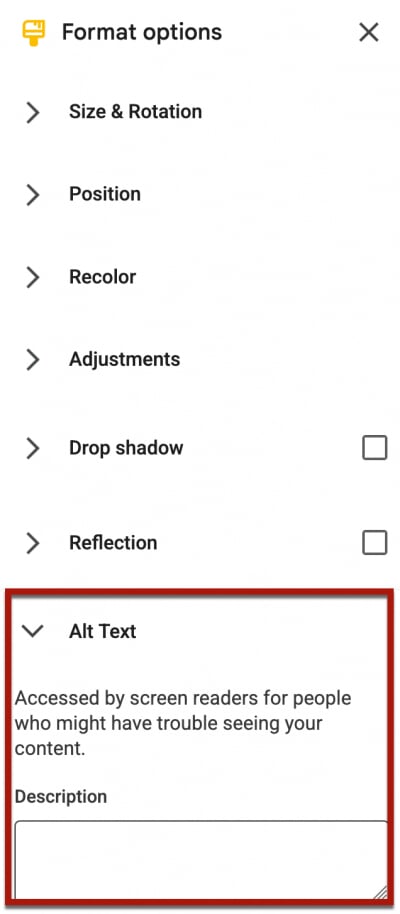
- Select Alt Text from the context menu to open the Format options sidebar
- Type your description in the Alt Text box available in the Format options sidebar (see below)