

DesignPLUS tools are advanced course design tools that are integrated with Canvas. You can painlessly style your course content and create interactive course components. This example Canvas page shows some of the design and interactive elements available with DesignPLUS.
The course design templates were developed with DesignPLUS tools. This page will help you access the DesignPLUS tools and learn how to use them if you are interested.
How to Access DesignPLUS
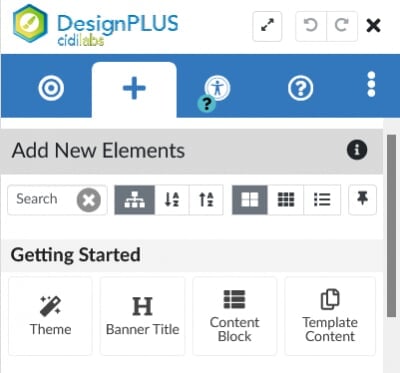
Launching the Tool
To open the design tools, go to any Canvas page, click the Edit button, then you need to press Alt+Shift +D for Windows (Option +Shift +D for Mac).
This will open the DesignPLUS side menu.
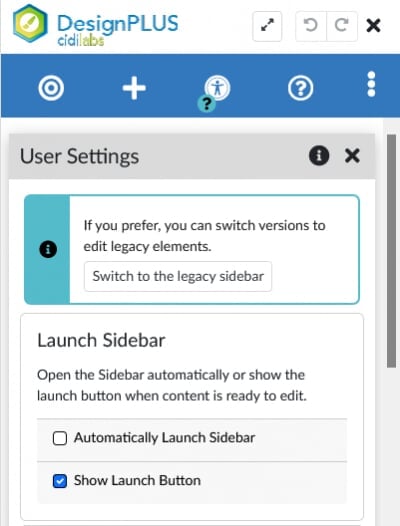
Optional: User Settings for Quicker Access
You can change the settings to automatically launch the design tools (opens the full DesignPLUS menu when you edit a Canvas page) or to show a launch button in Canvas.
- Use the "More Options" icon (three vertical dots) on the right side of the top blue menu and select "User Settings".
- The first user setting "Launch Sidebar" lets you toggle these quick-access options.
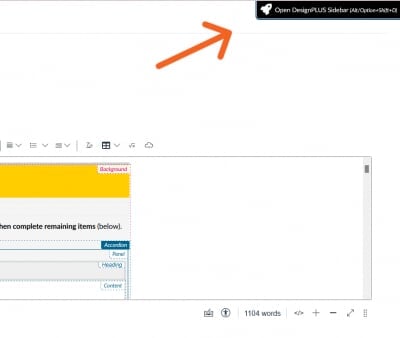
Optional: Show Launch Button
The "show launch button" is preferred by CFE instructional designers, as this option will display a button in the upper right-hand portion of the screen when you edit a page in Canvas. Clicking this button will open the full DesignPLUS menu when you need it.
DesignPLUS Training
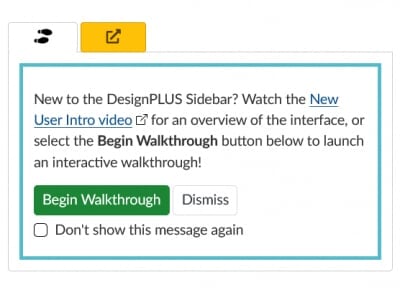
At the bottom of the DesignPLUS sidebar, there is a link to the "Getting Started with the New DesignPLUS Sidebar" video as well as an option for an interactive walkthrough.
The footprint icon is used here and in other menus to denote the availability of a walkthrough option.
Cidilabs offers a comprehensive online user guide, as well as on-demand training videos and live training sessions.
Contact coursedesign@mtu.edu if you need any assistance in online course design and development.